Few things are more common in homes, cafés, offices, salons, waiting rooms, and small businesses than this question: “What’s the Wi-Fi password?” It seems minor, but repeating it all day gets annoying fast. Long passwords are easy to mishear, hard to type, and frustrating for guests who just want to connect quickly.
That is exactly why so many people now want to know how to make a QR code for Wi-Fi access. Instead of spelling out your network name and password again and again, you can let people scan a code with their phone and connect in seconds.
It is simple, practical, and surprisingly useful. A Wi-Fi QR code can improve convenience for guests, create a smoother customer experience, and save time for staff. It also looks cleaner and more modern than writing passwords on paper, sticking them to a wall, or repeating them verbally all day.
In this guide, you will learn exactly how to create a Wi-Fi QR code, where to use it, what information you need, common mistakes to avoid, and best practices for making sure it works properly. If you are new to QR codes in general, our guide on how to create a QR code for free is a good place to start. And if you want to understand whether your QR code should stay fixed or be editable later, read our article on static vs dynamic QR codes. For business owners thinking beyond Wi-Fi, our guide on best uses of QR codes for small businesses also shows where these codes fit into a better customer experience.
What Is a Wi-Fi QR Code?
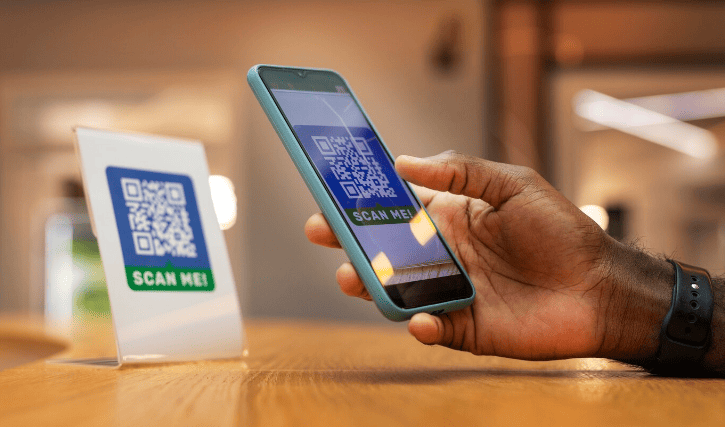
A Wi-Fi QR code is a scannable code that stores your wireless network details. When someone scans it with a compatible smartphone, their device can instantly read the network name, password, and security type, then prompt them to join the network.
Instead of manually entering the password, the user simply scans and connects.
That makes Wi-Fi QR codes especially useful in places where many guests need internet access, such as:
- cafés and restaurants
- hotels and guesthouses
- salons and spas
- offices and reception areas
- clinics and waiting rooms
- coworking spaces
- shops and showrooms
- homes hosting visitors
Why Use a QR Code for Wi-Fi Access?
A Wi-Fi QR code solves a small but very common problem. It saves people from typing a password manually, which reduces friction and avoids mistakes.
That sounds simple, but the convenience adds up quickly.
A Wi-Fi QR code helps by:
- making guest access faster
- reducing password typing errors
- saving staff time
- creating a cleaner, more modern setup
- improving customer experience
- avoiding the need to repeat the password constantly
For businesses, this is a practical customer service improvement. For homes and private spaces, it is simply easier and less awkward than reading a long password out loud.
What Information You Need Before Creating the QR Code
Before making your Wi-Fi QR code, you need a few details:
- the Wi-Fi network name (SSID)
- the Wi-Fi password
- the security type
The network name is the Wi-Fi name people normally see when browsing available networks.
The password is the access key guests would otherwise type manually.
The security type is usually one of the following:
- WPA or WPA2
- WEP
- no password / open network
If you are not sure which security type your network uses, check your router settings or the device you normally use to manage your Wi-Fi.
How to Make a QR Code for Wi-Fi Access
If you want to know how to make a QR code for Wi-Fi access, the process is straightforward. The main thing is entering the network details correctly.
Step 1: Confirm Your Wi-Fi Details
Start by checking the exact network name and password.
This matters because even a small mistake can prevent the code from working. A missing character, incorrect capital letter, or wrong security type can stop users from connecting.
Before you create the QR code, confirm:
- the network name is spelled exactly right
- the password is correct
- the security type matches the network
Step 2: Open a QR Code Generator That Supports Wi-Fi
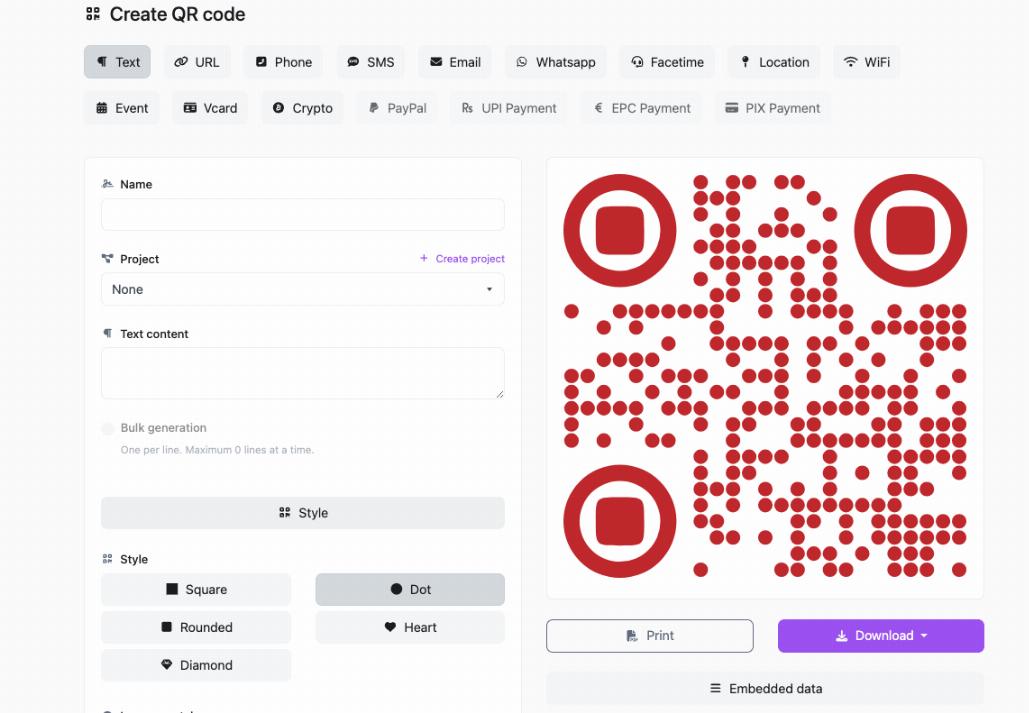
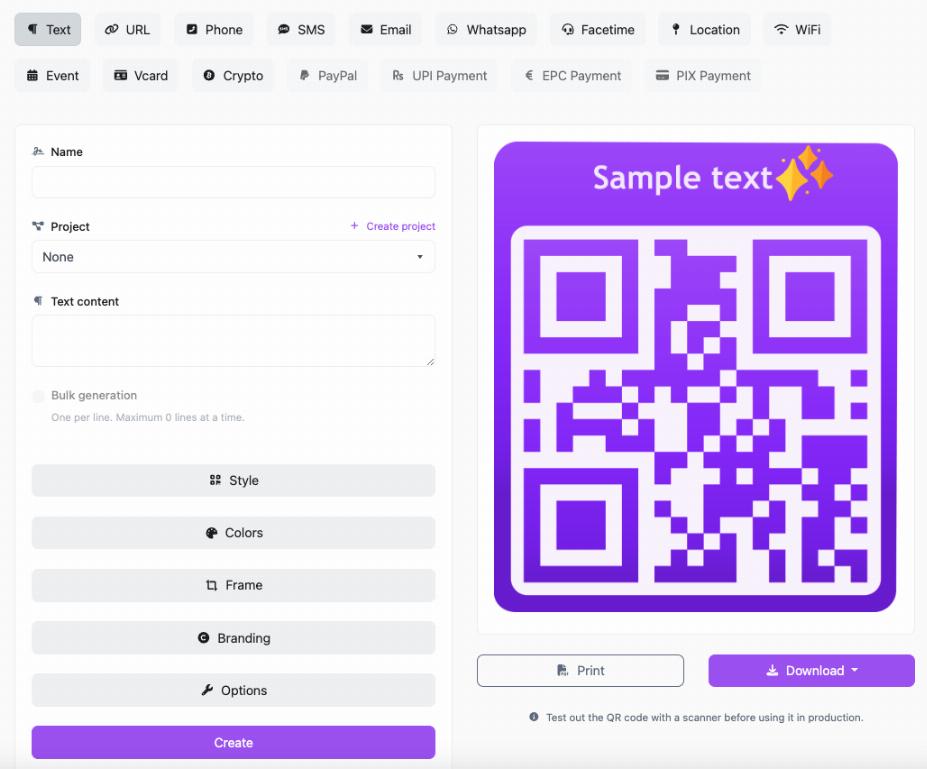
Next, use a QR code generator that includes a Wi-Fi option. A tool like QRcodesgenerate.com makes it easy to generate a QR code specifically for Wi-Fi access without any technical setup.
This is different from creating a basic website QR code. Instead of linking to a URL, you are encoding Wi-Fi connection details directly into the code.
If you want the general beginner process first, you can also read our guide on how to create a QR code for free.
Step 3: Enter the Network Name
Type your Wi-Fi network name exactly as it appears on devices.
Be careful with spaces, capitalization, and symbols. The network name needs to match the real one precisely for the phone to recognize it correctly.
Step 4: Enter the Password
Now type the Wi-Fi password exactly as it is.
This is the step where most mistakes happen. Double-check it before moving on. If your password includes special characters, enter them carefully.
Step 5: Select the Security Type
Choose the correct network security option, such as WPA/WPA2, WEP, or no password.
If this setting is wrong, the QR code may generate successfully but still fail when someone tries to connect.
Step 6: Generate the QR Code
Once the Wi-Fi details are entered, generate the QR code. The tool will create a scannable code that devices can use to join the network.
At this point, some tools may offer design customization. Keep it simple. A clear, high-contrast QR code usually works best.
Step 7: Test It Before Sharing
This step is essential. Scan the QR code yourself and test it on another device if possible.
Make sure:
- the code scans easily
- the network name appears correctly
- the device connects successfully
- the password works without manual correction
Do not print or display the code publicly until you know it works.
Step 8: Place It Where Guests Can Use It Easily
Once tested, place the QR code where people naturally look for Wi-Fi access.
Good placement options include:
- table tents in cafés and restaurants
- reception desks
- waiting rooms
- guest rooms
- front counters
- office meeting rooms
- wall signs near seating areas
It helps to add a simple call to action such as “Scan to Join Wi-Fi” so guests immediately know what the code is for.
Where Wi-Fi QR Codes Work Best
Wi-Fi QR codes are useful almost anywhere people visit temporarily and need internet access.
Cafés and Restaurants
Guests often ask for Wi-Fi while waiting, working, or dining. A QR code on the table or counter makes access quick and easy. Restaurants already use QR codes in other ways too, especially for digital menus. If that applies to your business, our guide on how restaurants use QR codes for digital menus shows how both uses can work together naturally.
Hotels and Guesthouses
Guests arriving with phones, laptops, and tablets appreciate fast access to internet details without needing to ask at the desk every time.
Salons, Clinics, and Waiting Rooms
People waiting for appointments often want to connect quickly. A small QR sign can improve the experience without requiring staff help.
Offices and Meeting Rooms
Visiting clients, vendors, and interview candidates often need temporary guest Wi-Fi. A QR code removes the awkward back-and-forth.
Homes with Frequent Visitors
If you regularly host guests, a Wi-Fi QR code can be a surprisingly convenient addition to your home office, hallway, or guest room.
Should a Wi-Fi QR Code Be Static or Dynamic?
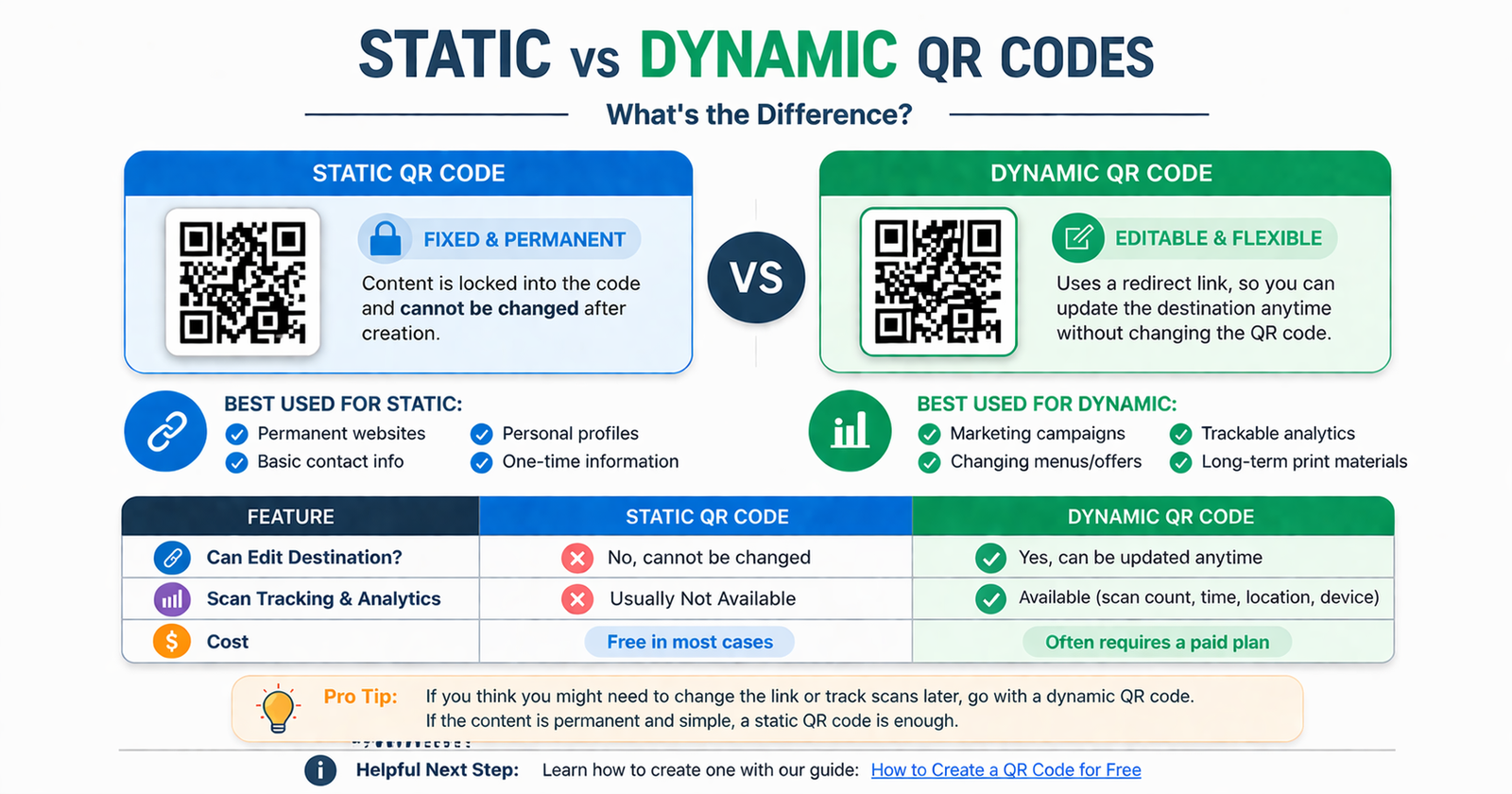
In most cases, a Wi-Fi QR code is effectively a fixed setup because it is based on your actual network details. If the network name or password changes, the QR code usually needs to be updated as well.
That is why understanding static vs dynamic QR codes can still be useful. For a simple Wi-Fi connection code, a fixed setup is often enough. But if you are using QR codes in broader business workflows, such as promotions, menus, campaigns, or landing pages, dynamic options can offer more flexibility elsewhere.
Best Practices for Wi-Fi QR Codes
Use a Clear Label
Do not assume everyone will know what the QR code does. A short prompt makes a big difference.
Good examples include:
- Scan to Join Wi-Fi
- Guest Wi-Fi Access
- Scan for Internet Access
Place It in an Easy-to-See Spot
The code should be visible and accessible where guests actually need it. Do not hide it in a cluttered corner.
Test It on Different Phones
Always test on more than one device if possible. Different phones may behave slightly differently when reading Wi-Fi QR codes.
Keep the Design Simple
High contrast and clean spacing help the code scan more reliably.
Update It If Your Network Changes
If you change the Wi-Fi name or password, the code must be updated too. Old signs with outdated network details will only frustrate people.
Common Mistakes to Avoid
Typing the Password Incorrectly
This is the most common problem. Even one wrong character can stop the code from working.
Choosing the Wrong Security Type
The code may look fine but fail in practice if the security type does not match the network.
Not Testing Before Printing
Never assume the generated code is correct. Test it first.
Placing It in the Wrong Spot
A Wi-Fi QR code only helps if people can find it easily where they need it.
Using a Weak Mobile Environment
If internet access itself is weak in the room, people may think the QR code is the problem. Make sure the guest area has usable network coverage.
How Businesses Benefit from Wi-Fi QR Codes
For businesses, a Wi-Fi QR code is not just a convenience feature. It supports a smoother customer experience.
It can:
- reduce interruptions to staff
- make the business look more organized
- improve the experience for waiting customers
- support longer visits in cafés or lounges
- make guest access feel fast and modern
For small businesses already using QR codes for menus, reviews, website links, or promotions, Wi-Fi access fits naturally into that broader strategy. If you want to explore those ideas too, our guide on best uses of QR codes for small businesses covers them in more detail.
FAQ
How do I make a QR code for Wi-Fi access?
Enter your Wi-Fi network name, password, and security type into a QR code generator that supports Wi-Fi codes, generate the code, then test it before displaying it for guests.
What information is needed for a Wi-Fi QR code?
You need the Wi-Fi network name, the password, and the security type, such as WPA/WPA2, WEP, or open network.
Can I create a Wi-Fi QR code for free?
Yes. Many tools allow you to create a Wi-Fi QR code at no cost. For the general setup process, see our guide on how to create a QR code for free.
Why is my Wi-Fi QR code not working?
The most common reasons are an incorrect password, wrong network name, wrong security type, or lack of testing before use.
Where should I place a Wi-Fi QR code?
Place it where guests naturally look for access, such as reception desks, tables, waiting rooms, counters, meeting rooms, or guest rooms.
Are Wi-Fi QR codes useful for businesses?
Yes. They improve convenience, save staff time, and create a better guest experience in places where internet access matters.
Conclusion
Learning how to make a QR code for Wi-Fi access is one of the easiest ways to improve convenience for guests, customers, and visitors. It removes the hassle of sharing passwords manually and turns a small everyday annoyance into a quick scan-and-connect experience.
Whether you run a café, office, clinic, hotel, salon, or simply host people at home, a Wi-Fi QR code can make access faster and more professional. The key is entering the network details correctly, testing the code properly, and placing it where people can actually use it.
If you are ready to create one, QRcodesgenerate.com makes it easy to generate QR codes for Wi-Fi, website links, menus, and more. A simple scan can save time every single day.